Job details on the project
Store the project name, client details, address, and optional GPS coordinates with the flooring job.
Construction documentation software for flooring teams.
From the existing subfloor to the finished installation, keep photos, daily notes, tasks, and documents organized in one project. Construkt helps flooring contractors record progress and maintain a clear history of their work.
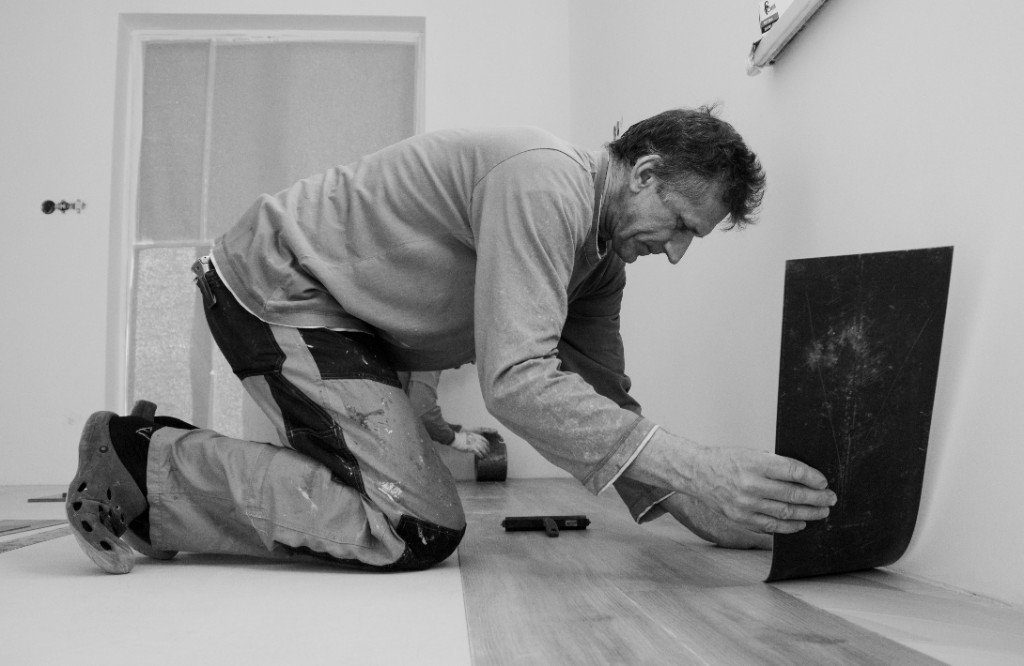
Open a Construkt project for each apartment, house, commercial suite, or renovation. Photos of the kitchen, tasks for the living room, and finish-schedule PDFs stay on that job instead of mixing with the next install.
Store the project name, client details, address, and optional GPS coordinates with the flooring job.
Assign the crew who should see this property. You can also designate a project lead.
Keep site photos, drawings, PDFs, tasks, and daily records attached to the same project.
A parquet renovation in one apartment and a vinyl install in another remain different projects.
Flooring is not a built-in project type. Use a general construction type such as Residential, Commercial, Renovation, or New Construction.
Photograph the floor as you found it: worn parquet, lifted vinyl, cracked tile, uneven patches, or a subfloor that still needs work. These are ordinary project photos with notes — not a moisture test or a flatness survey.
When available, a photo can store capture time and coordinates with the shot.
Write what you saw, such as damage near a doorway, then save it on that project.
Use the existing labels Issue, To check, In progress, or Completed. There is no flooring defect detector.
Construkt does not measure moisture, relative humidity, slab conditions, or floor flatness. How Construkt files site photos
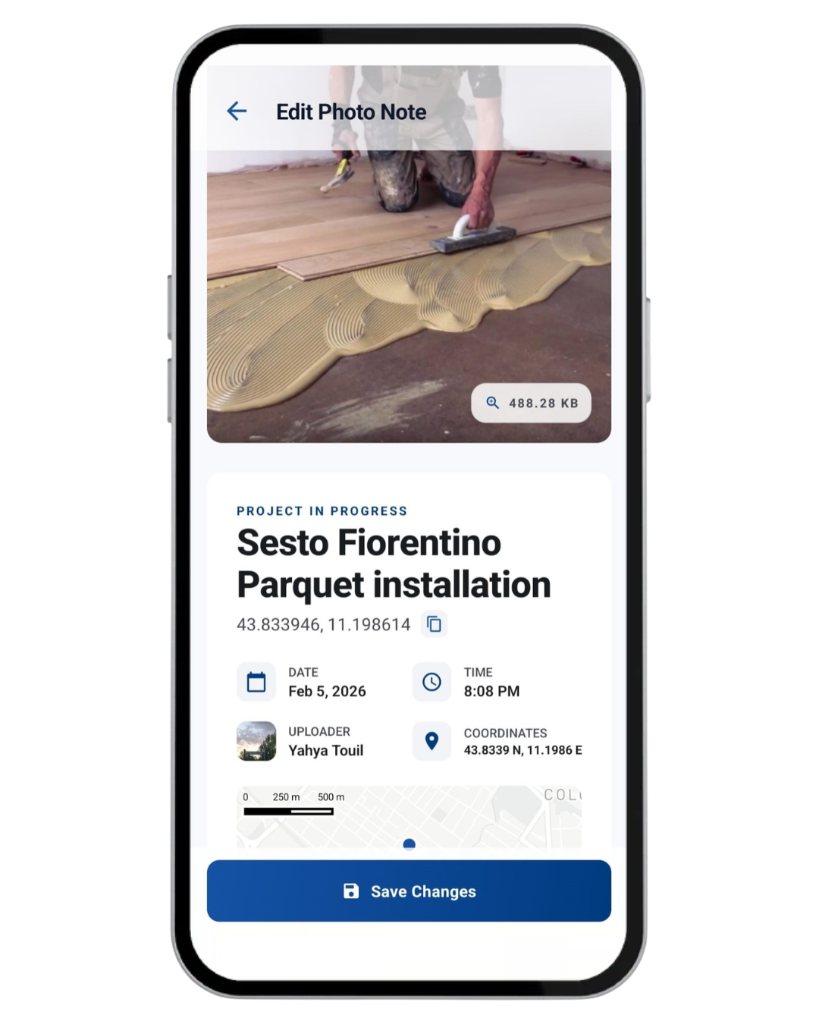
Keep photographing as the job moves through the rooms. These steps are how a crew can use Construkt’s general photo tools — they are not built-in flooring stages.
Capture the surface you are about to remove or cover, room by room if that helps later review.
Photograph tear-out, scraping, cutting, or subfloor work before the new material goes down.
Shoot adhesive, underlayment, parquet courses, tile, vinyl, or laminate as each area advances.
Leave finished shots on the same project, next to the earlier photos from that property.
Construkt does not pair before-and-after images automatically or build a room-by-room gallery.
Installers often find a problem in one room while another is already underway. Use photo notes and project tasks to write where it is, in your own words.
A photo note can say “Kitchen — damaged subfloor near the doorway” so the office sees the area without a floor-plan pin.
A construction project task has a title and optional description. Use those fields for “Living Room — wait on adhesive” or “Level 2 — check transition.”
Those notes and tasks stay on the apartment or suite you opened, not in a shared list of every floor you installed this month.
Construkt does not provide a room map, floor-plan annotation, or inspection checklist. Construction project tasks do not include a dedicated measurement or square-footage field. Project tasks
Each project has one daily log per calendar day. Use it for what the crew actually did on the floor that day.
Note that subfloor preparation finished, or that parquet laying started in the living room.
Record when work paused because of a visible defect, a wet patch, or material that had not arrived.
Add anything the office should see later, in free text — not as a moisture reading.
Include attendance-based crew hours and optional cost entries on that day’s log.
A daily log does not create a standalone one-day flooring PDF. Project PDF reports cover a selected period and the records you include.
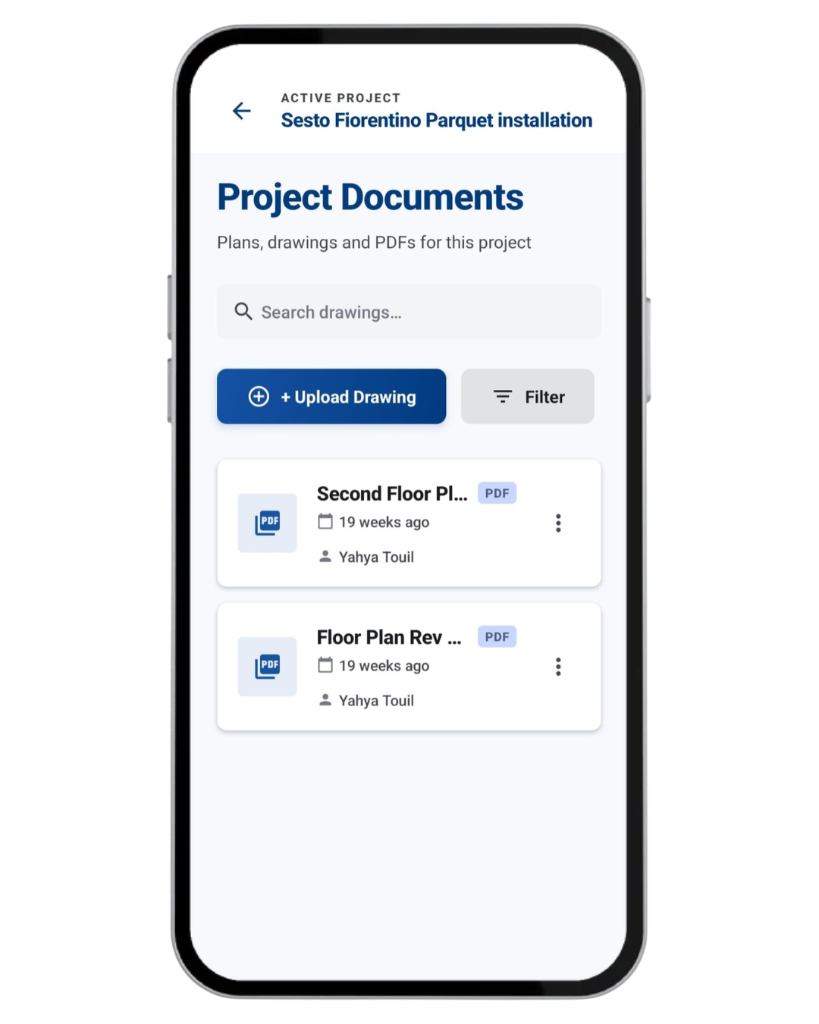
Store product information, installation instructions, finish schedules, and drawings on the same flooring job as the photos.
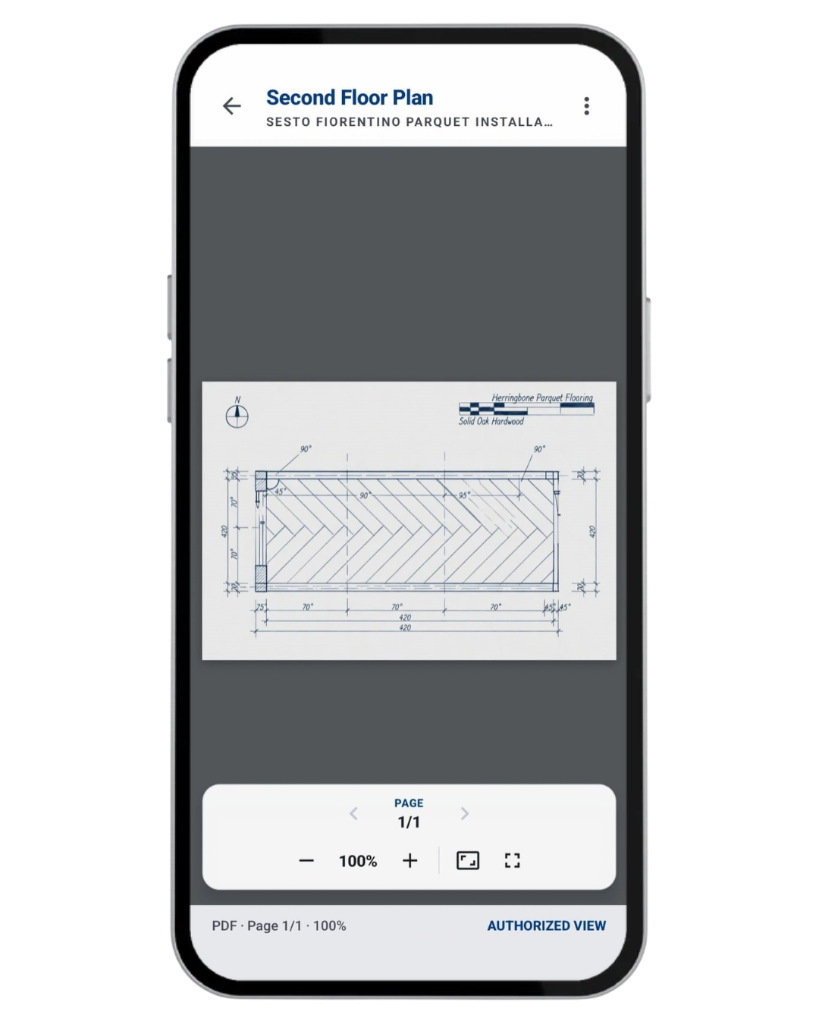
Log flooring products with a name, notes, photos, tags, and quality-check status.
Keep supported finish schedules, installation instructions, and drawings on the project and open them on site.
Construkt does not calculate square footage, waste, grout, or tile layouts. It does not match dye lots, run inventory, or create purchase orders. Opening a drawing does not measure the plan. Project documents · Construction documentation
Generate a project-period PDF from the job. Include supported photos, dates, notes, tasks, materials, and daily logs according to the export settings.
The PDF covers the period and items you select. It is not a standalone single-day flooring report.
Share documented progress with a general contractor or property owner, or keep the file as an internal record of the install.
Included photos can show timestamps and GPS coordinates when that data was saved.
Certified record features are plan-dependent. Construkt PDFs do not certify flooring compliance, moisture standards, or insurance requirements. Construction reporting
This is an illustrative workflow, not a customer story.
Open a Construkt project for the apartment and save the job details.
Capture the existing parquet or covering before removal.
Add photo notes for visible issues, such as a damaged subfloor in the kitchen.
Create project tasks, assign members, and set optional due dates.
Photograph subfloor work and parquet installation as each room advances.
Use the daily log for work completed, issues, hours, and notes.
Leave completion shots on the same project timeline.
Export a report for the period with the photos and records you choose.
This example shows how a flooring contractor can use Construkt’s existing features. It is not a case study.
Construkt is general construction documentation software. Flooring teams use it to keep installation photos and job records in one place.
Yes. Create a project for each install and keep photos, daily logs, tasks, documents, and reports on that record.
No. Construkt is general construction management and documentation software. It does not have a flooring module or a Flooring project type.
Yes. Photos captured in Construkt are filed to the active job and shown on that project’s timeline.
Yes. Photograph the existing floor, visible damage, and preparation work, then keep those shots on the job. Construkt does not measure moisture or flatness.
Yes. Put the room or area in a photo note or in a task title and description, for example “Kitchen — damaged subfloor near the doorway.” There is no dedicated room map.
Yes. Each project has one daily log per calendar day for work completed, issues, notes, attendance-based crew hours, and optional cost entries.
Yes. Create project tasks, assign them to project members, set optional due dates, and track Pending, In Progress, or Completed. Photo proof is not required to complete a construction project task.
Yes. Record materials with notes and photos, and store supported PDFs and images on the project. Construkt does not calculate quantities or create purchase orders.
Yes. Export a project-period PDF and include supported photos, tasks, materials, and daily logs according to the export settings. Construkt does not generate a standalone single-day PDF.
No. Construkt does not measure rooms, calculate square footage or waste, produce takeoffs, or compute tile layouts or grout quantities.
No. Construkt does not record moisture or humidity, create estimates, invoices, or bids, or integrate with flooring takeoff or accounting platforms.
Record installation photos, daily notes, tasks, and project reports in the Construkt mobile app.
Download App